Module 01

Firm

Everything that runs the practice rather than one client's books: the dashboard, engagements, workflow templates, work queues, your clients, your team and what each person may do, and the chart-of-accounts templates every client starts from.

1.1

Dashboard

Firm portal · Dashboard

Where the firm stands, every morning.

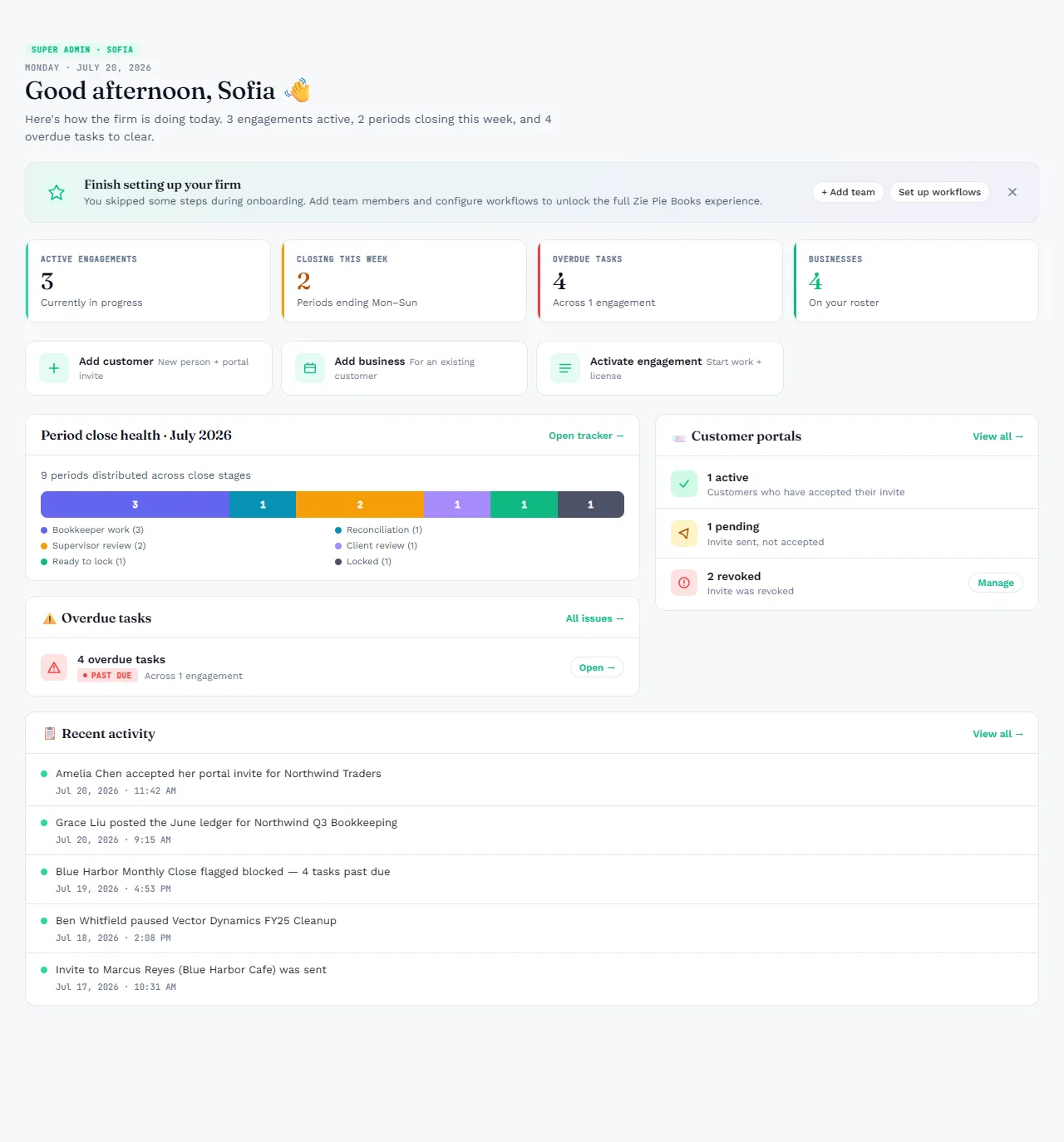
One screen for the whole practice. The firm-wide counts sit up top, then every open period placed on a close-stage strip, the state of each client's portal, and a feed of what your team did last.

  • Four firm-wide counts: active engagements, periods closing this week, overdue tasks, and businesses on the roster
  • Period close health: every open period sorted into bookkeeper work, supervisor review, ready to lock, reconciliation, client review, or locked
  • Customer portals at a glance: active, invited, and disabled
  • Recent activity across the firm, with a link through to the full audit log
  • A ten-step getting-started walkthrough on sample data you can remove with one click
app.ziepiebooks.ai/dashboard
Firm dashboard in ZiePieBooks: active engagements, periods closing this week, overdue tasks, period close health, customer portals and recent activity.
Firm dashboard · the whole practice, live
1.2

Engagements

Firm portal · Engagements

One client business, one workflow, the whole job laid out on day one.

An engagement is a client business running on a workflow for as long as the relationship lasts. Pick Monthly or Catch-up, choose the template, name the team, and activate. The system generates every period and every task at once, so you can see and staff the whole job instead of discovering it month by month.

  • Monthly or Catch-up, on any of your firm's workflow templates
  • Every period and task generated at activation: the sample engagement is 6 stages and 56 tasks
  • Completion, tasks done, and open blockers on one strip, with Progress, Blockers and Files tabs beneath
  • Named seats for bookkeeper, supervisor and customer, so every task has an owner
  • Pause, resume, or close; the setup, workflow and team stay locked while the engagement is active
app.ziepiebooks.ai/engagements/…
Engagement detail in ZiePieBooks: overall completion, tasks completed and open blockers, with basic info, customer and team cards beneath.
Engagement detail · Firm portal
1.3

Workflows

Firm portal · Workflows

Define the process once. Every engagement runs on it.

A workflow template is your firm's standard run of stages and tasks: who does what, in what order, at what cadence. ZiePieBooks ships eight system templates for Monthly and Catch-up work, with or without a supervisor and a customer in the loop. Duplicate one, adjust it, and every engagement you start from it follows your way of working.

  • Stages and tasks, each with an owner seat: bookkeeper, reviewer, approver, or client
  • Monthly and Catch-up variants; tasks that recur every period or run once at setup
  • Tasks conditional on how statements arrive: bank feed, CSV, PDF, or by email
  • Duplicate a system template and edit your own; set the firm's default
  • Preview the full task list before an engagement is activated
app.ziepiebooks.ai/workflows
Workflow templates in ZiePieBooks: eight system templates with their type, sources, participants, stages and tasks.
Workflow templates · Firm portal
1.4

My Work & Team Work

Firm portal · My Work

Everyone's queue, in order. Managers see the whole firm.

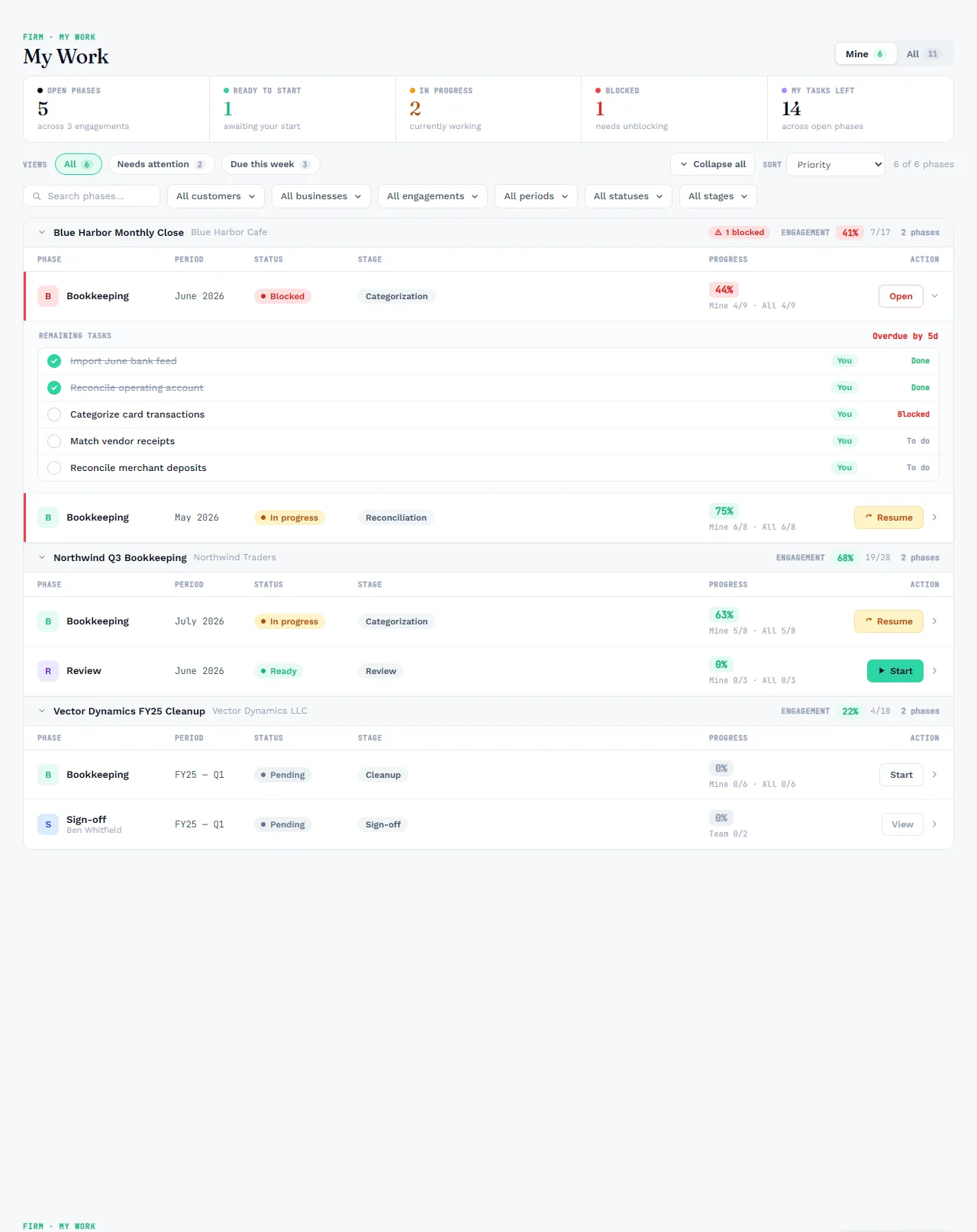
Each person opens My Work and sees only the phases and tasks assigned to them, sorted by priority, with blocked and overdue work surfaced first. Managers switch to Team Work for the same queue across every engagement, to see where work is stuck and who has capacity.

  • Open phases, ready to start, in progress, blocked, and tasks left, counted across your engagements
  • Filter by customer, business, engagement, period, status or stage
  • Expand a phase to see its remaining tasks and who holds each one
  • Start, resume, or open a phase from its row; reassign a task or complete it on someone's behalf
  • Overdue tasks raise a notification in the inbox and by email
app.ziepiebooks.ai/my-work
My Work in ZiePieBooks: open phases, ready, in progress and blocked counts, with each engagement's phases and remaining tasks beneath.
My Work · a personal queue
1.5

Customers & businesses

Firm portal · Customers, Businesses

People, and the books you keep for them.

A customer is a person: you invite them, they get a portal login under your firm's roof, and you can disable that access at any time. A business is one set of books: it belongs to a customer, holds its own bank accounts and chart of accounts, and is what an engagement runs on. One customer can own several businesses, and a customer only ever sees their own.

  • Invite customers by email with a one-link activation; resend, revoke, enable or disable, singly or in bulk
  • Businesses by industry, each with its owner, engagements and portal status on one list
  • Archive a business and its licence is released; unarchive brings it back
  • A customer's access is scoped to their own businesses, never widened by a role change
  • Client tax IDs, phone numbers and internal notes are encrypted at rest
app.ziepiebooks.ai/businesses
Businesses in ZiePieBooks: every legal entity the firm keeps books for, with owner, engagements and owner portal status.
Businesses · Firm portal
1.6

Team, roles & audit

Firm portal · Team, Roles & Permissions, Audit log

Who can do what, checked on every action.

Invite as many team members as you need at no extra cost. Roles are data you own: start from Firm Administrator, Supervisor and Bookkeeper, then rename them, duplicate them, or build your own from the permission catalogue. Narrow any member to specific client businesses. Every permission is checked by the server on every request, never only by hiding a button.

  • Unlimited team members: invite, resend, deactivate, reactivate
  • Roles built from a permission catalogue; starter roles you can edit or duplicate
  • Per-member overrides that limit a person to named businesses
  • A firm-level audit log of who did what and when, append-only and hash-chained so a record can't be quietly edited
  • Firm settings and billing live alongside, for the people with the permission to manage them
app.ziepiebooks.ai/admin/users
Your team in ZiePieBooks: members with their roles and status, and a Roles and Permissions tab.
Your team · roles are yours to shape
1.7

Chart of accounts templates

Firm portal · Chart of Accounts

One approved standard per industry.

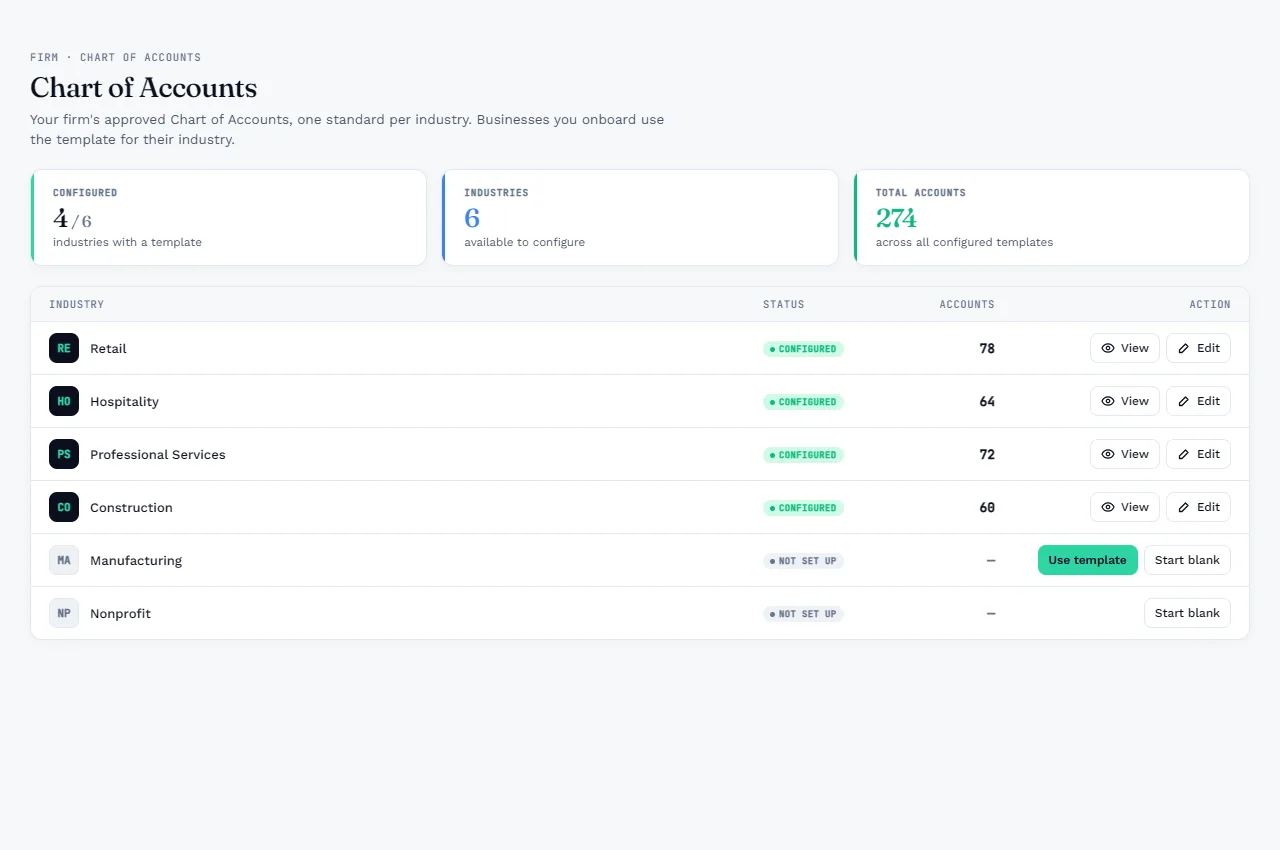
Your firm's chart of accounts, held once per industry. Every business you onboard starts from the template for its industry, so coding stays consistent across clients and the AI learns from the same account names. Adjust a template, apply it, add accounts to a business when it needs them, and capture opening balances when the books begin.

  • A template per industry: retail, hospitality, professional services, construction and more
  • Start from a template or blank; import accounts from a file
  • Apply a template to a business, then add, archive, reactivate or retype its accounts
  • Opening balances captured per business as a setup task
  • Quick-add an account while categorising, without leaving staging
app.ziepiebooks.ai/coa
Chart of Accounts in ZiePieBooks: one template per industry, with configured industries and account counts.
Chart of accounts · one standard per industry

Module 02

Bookkeeping

One client business at a time: bank feeds and statement uploads into staging, AI categorization with a person approving, the review chain, reconciliation, journal and ledger, reports, and a period close that locks.

2.1

Banking & statements

Client workspace · Banking, Documents, Extractions

Every account's transactions, in through the front door.

Each business keeps its own bank accounts and cards. Connect them through Plaid and transactions arrive on a schedule, or upload the statement the bank gave you: a CSV goes through a four-step wizard that detects the layout and maps the columns, and a PDF is read by the extraction engine, summary first, then the pages you choose.

  • Bank feeds through Plaid, synced on a schedule and on demand, with a sync log per connection
  • CSV uploads: layout auto-detected, columns mapped, periods and rows reviewed before anything is staged
  • PDF statements: the summary is read first and checked against the period, then the transactions page by page
  • Hard statements handled: a region studio for odd layouts and decoding for fonts that hide their letters
  • One statement per account per period; duplicates are refused, and every upload is kept with who sent it
app.ziepiebooks.ai/clients/…/banking
Upload CSV in ZiePieBooks: a four-step wizard that maps columns, reviews periods and transactions, then processes the file.
CSV upload wizard · Client workspace
2.2

Staging & AI categorization

Client workspace · Staging Review

History first, AI for the unknowns, a person approves.

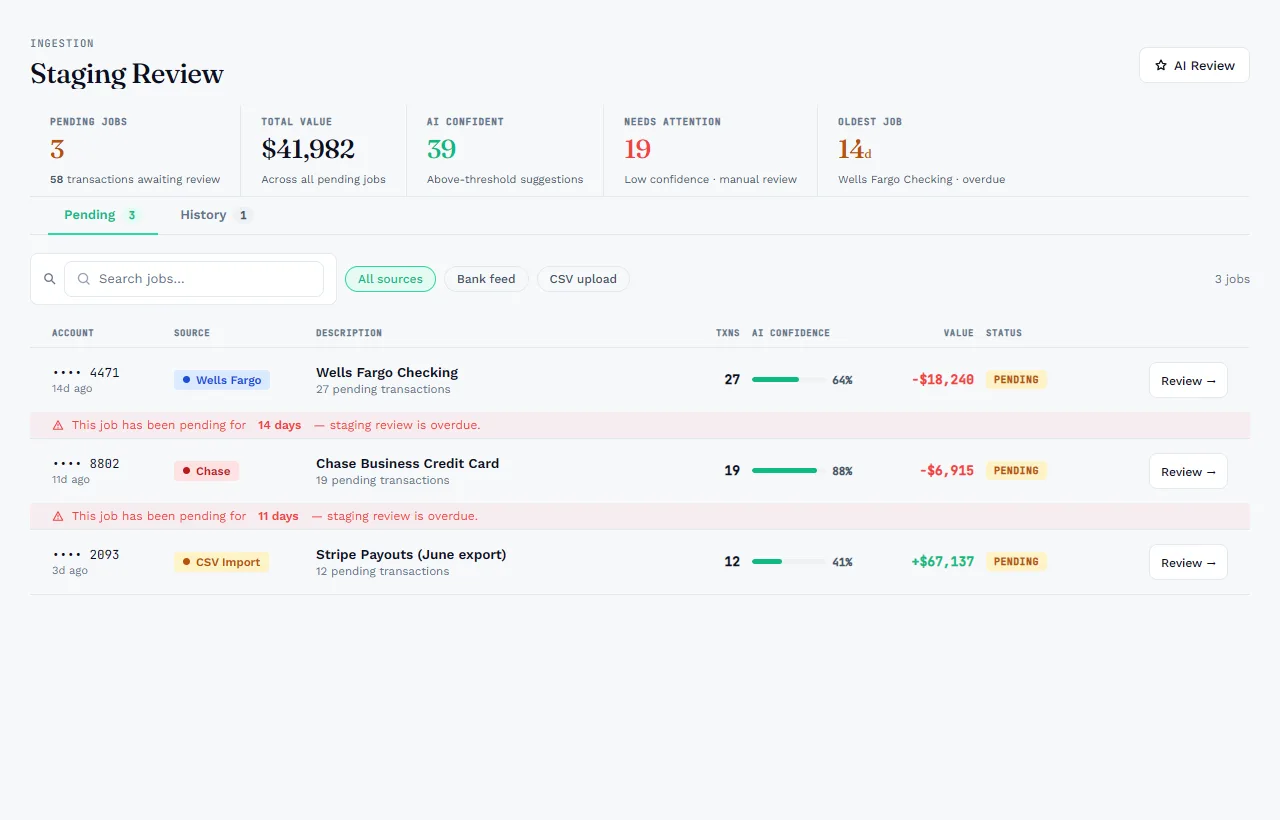
Imported rows land in staging, never straight in the ledger. The run groups identical descriptions, applies the rules your approvals have already taught it, and sends only the unknowns to the model, which answers with a confidence score. Confident matches wait in one band, doubtful ones in another, and nothing posts until a person says so.

  • Rules learned from every approval, so a vendor you have coded before never goes to the AI again
  • Live progress per run: transactions, distinct descriptions, matched by saved rules, sent to AI
  • Confidence tiers: approve the confident band at once, work the doubtful rows one by one
  • Suggested new accounts to approve or refuse, and quick-add to the chart without leaving staging
  • Post to the ledger in one step; group by account, description or payee while you review
app.ziepiebooks.ai/clients/…/staging
Staging Review in ZiePieBooks: pending jobs per account with transaction counts, AI confidence and value.
Staging review · AI confidence per job
2.3

Review chain

Client workspace · Approvals

Every change of hands is a recorded decision.

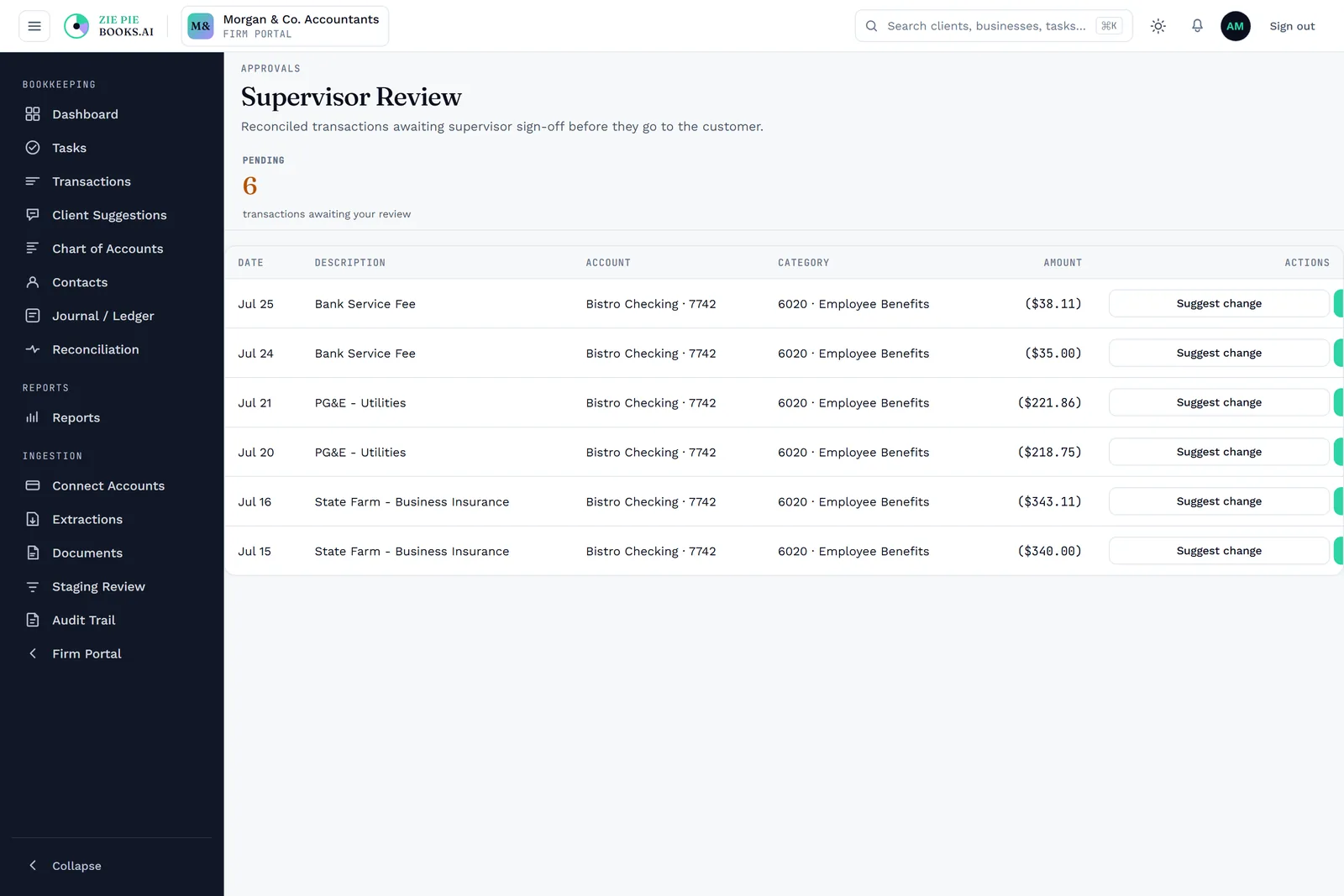
Submit a period's transactions for review and they move through the chain your workflow defines: supervisor, then customer, then accountant. Each reviewer can approve or suggest a change; the customer can also reject, recategorise, or propose an account that does not exist yet. The bookkeeper resolves what comes back, and every step is on the record.

  • Supervisor review queue with approve or suggest change per row
  • Release rows to the customer; their answers come back as approvals, rejections and suggestions
  • Accountant review as the final sign-off before the period can close
  • Customer-suggested accounts land in their own queue to create, apply or decline
  • Every decision stamped with who, when and what changed, on the transaction's own history
app.ziepiebooks.ai/clients/…/approvals
Supervisor Review in ZiePieBooks: reconciled transactions awaiting sign-off, each with a suggest-change action.
Supervisor review · one of three queues
2.4

Reconciliation

Client workspace · Reconciliation

Each account, each month, matched to the statement.

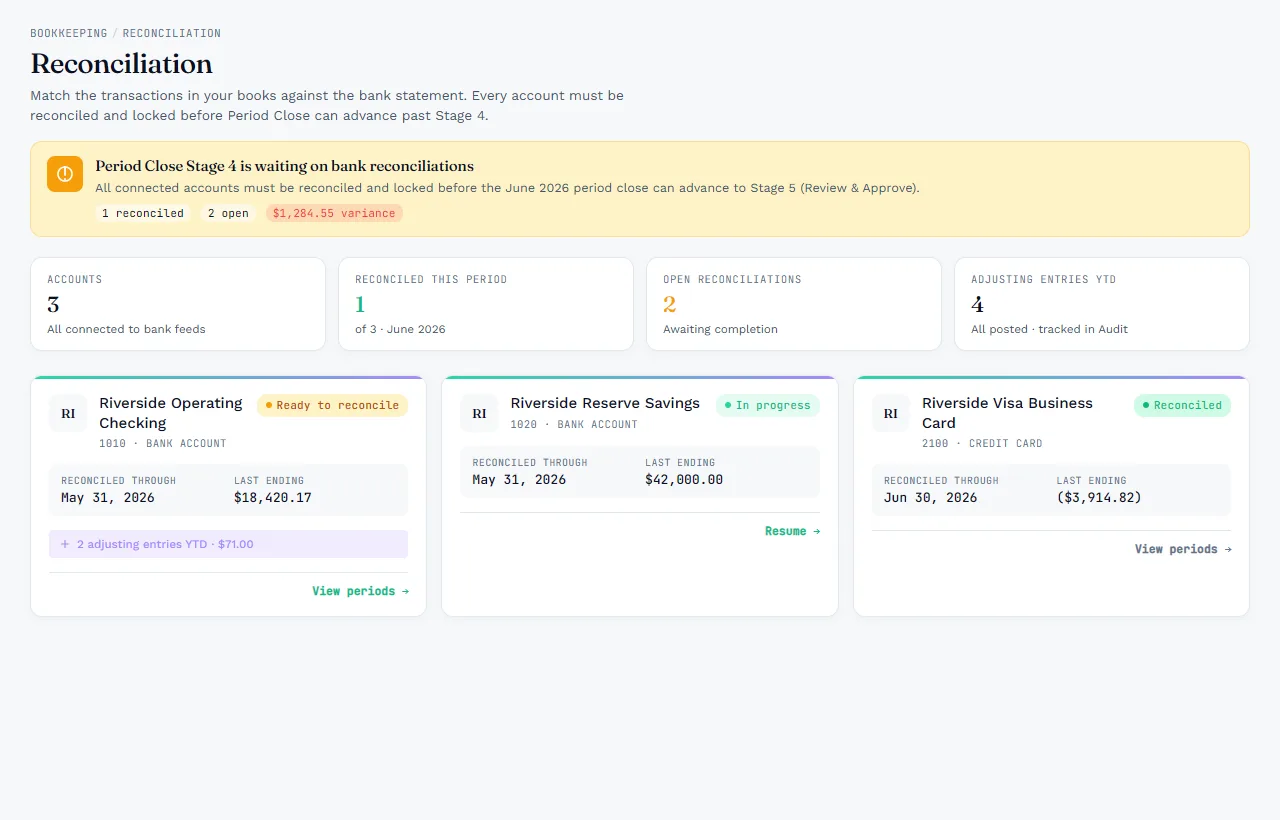
Every bank and card account is reconciled per period against its statement before the month can lock. Enter the statement's opening and closing balances, clear the lines that match, post adjusting entries for what does not, and finish. An account that genuinely has nothing to reconcile can be waived, with the reason kept.

  • One workspace per account and period: book side against statement side, the difference always in view
  • Statement opening balance compared to the books, so a bad start is caught before the matching
  • Adjusting entries posted from inside the workspace and tracked in the audit trail
  • Waive an account for a period with a reason; reopen a finished reconciliation with the log kept
  • A reconciliation report per account and period, exportable
app.ziepiebooks.ai/clients/…/reconciliation
Reconciliation in ZiePieBooks: each connected account with its reconciled-through date, last ending balance and status.
Reconciliation · per account, per period
2.5

Journal & ledger

Client workspace · Journal & Ledger

Manual entries with approval, and a ledger for every account.

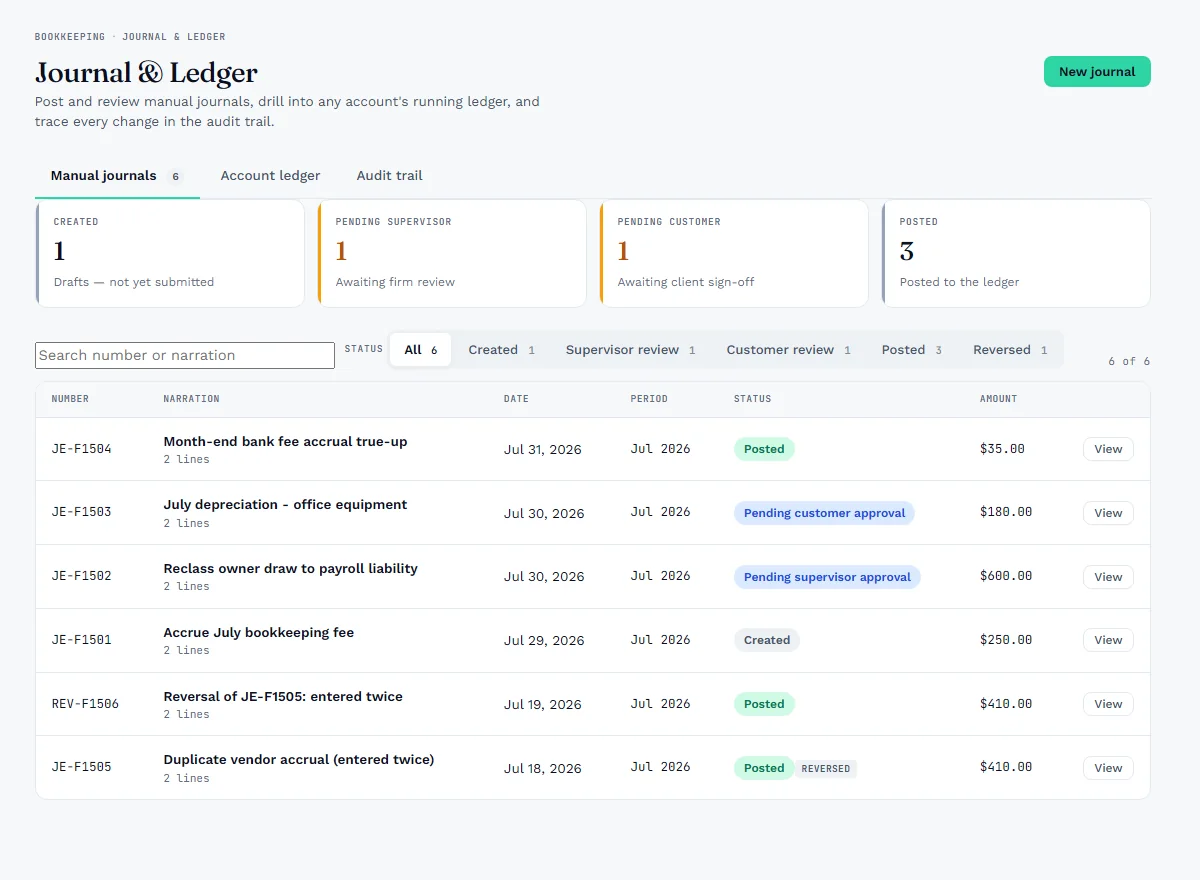
Post the entries that bank feeds never carry: accruals, depreciation, reclassifications. Each journal is composed with its lines, then follows its own approval path to the ledger, and is reversed rather than edited once posted. Any account opens into its running ledger, from opening balance to closing, every line linked to the entry behind it.

  • Journal composer with balanced lines, narration and period
  • Approval path: created, supervisor, customer where the workflow asks, then posted
  • Reversals instead of edits, so the trail stays intact
  • General ledger per account with opening balance, debits, credits and running balance, exportable to CSV
  • An audit tab on every entry showing each change and who made it
app.ziepiebooks.ai/clients/…/journal
Journal and Ledger in ZiePieBooks: manual journals by status, from created through supervisor and customer approval to posted.
Journal & ledger · Client workspace
2.6

Reports

Client workspace · Reports

The statements, on posted entries only.

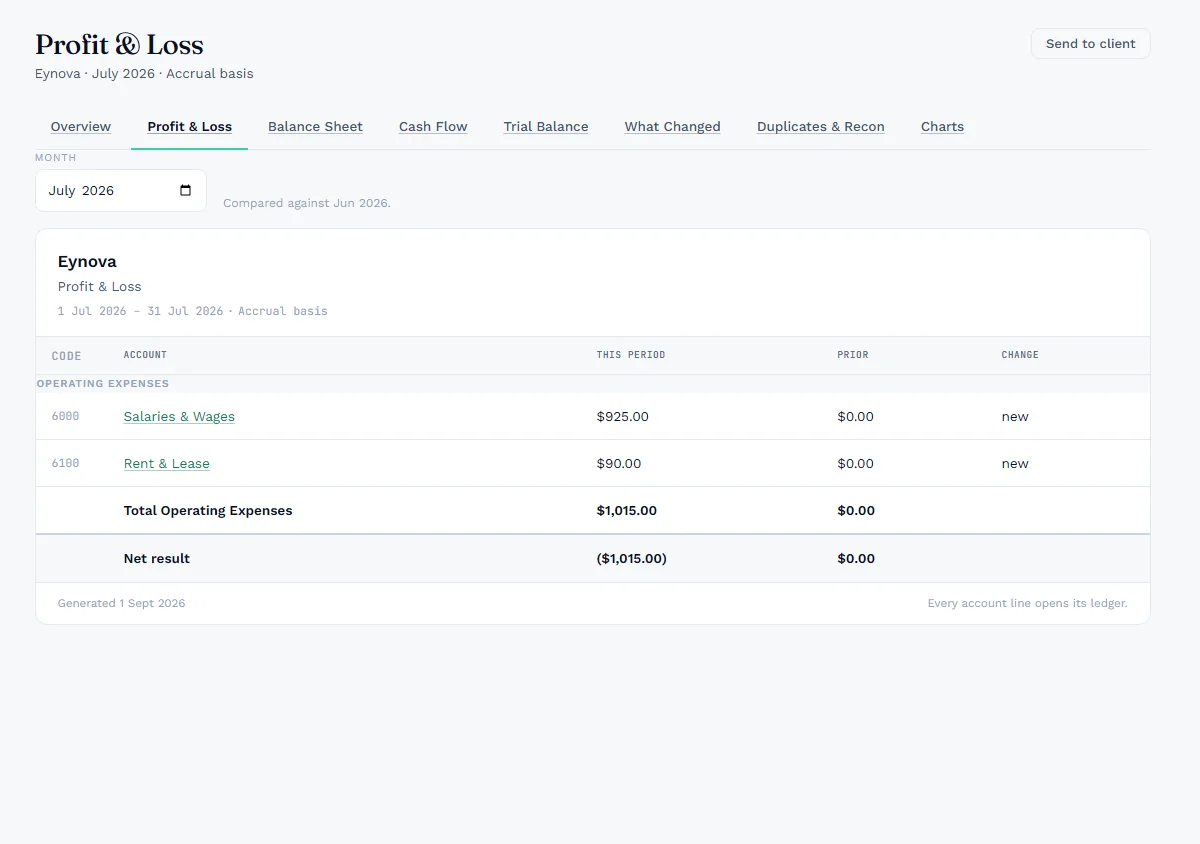
Reports read the ledger and nothing else, so a figure on a report is a figure a person approved. Eight tabs cover the overview, profit and loss, balance sheet, cash flow, trial balance, what changed since last month, duplicate and reconciliation signals, and charts, on an accrual or cash basis. Send the owner report to the client with a forecast attached.

  • Profit and loss, balance sheet and cash flow, compared against the prior period
  • Trial balance as a snapshot or rolling across months
  • What changed: the lines that moved since last month
  • Accrual or cash basis on every statement; every account line opens its ledger
  • Owner report emailed to the client, with a month-by-month cash-flow forecast
app.ziepiebooks.ai/clients/…/reports
Profit and Loss in ZiePieBooks: the eight report tabs, the month picker, and the statement compared against the prior period.
Profit & loss · one of eight tabs
2.7

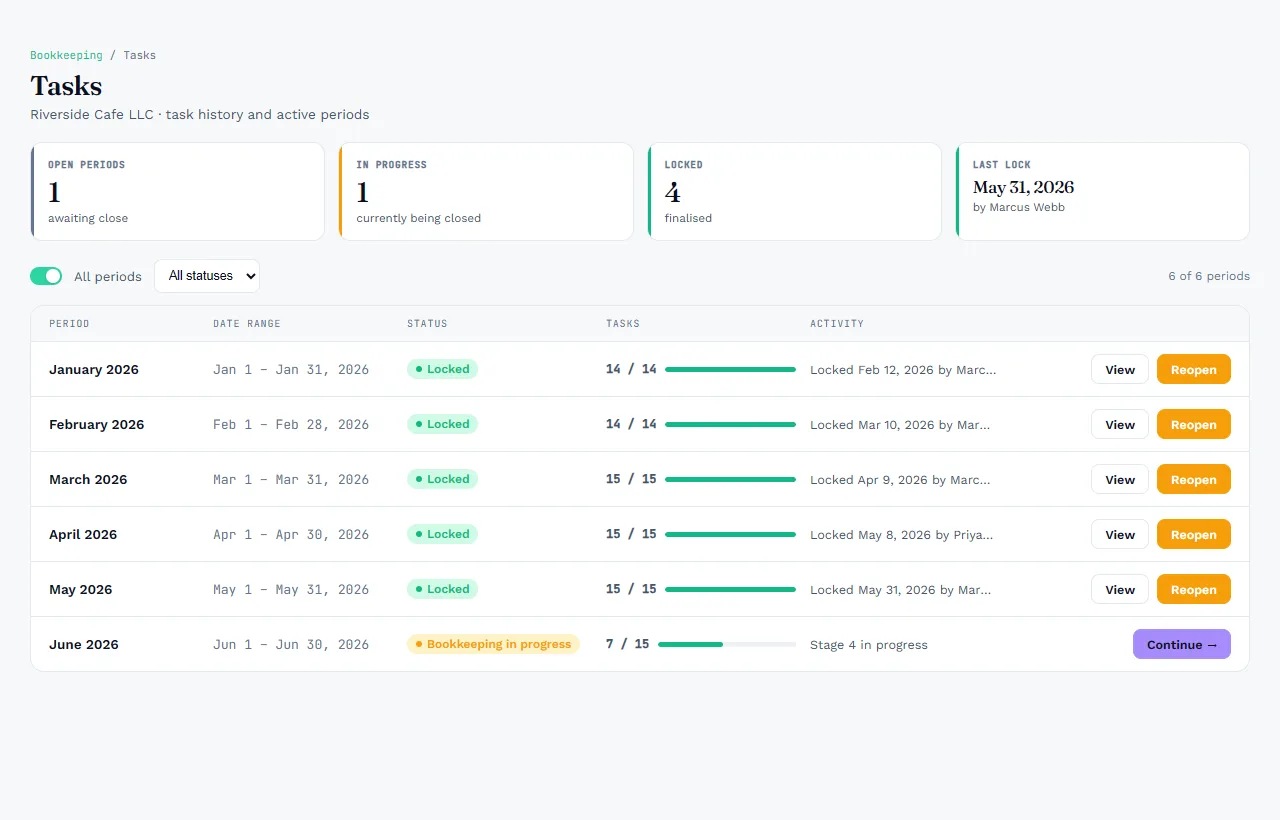
Period close

Client workspace · Period close

A month locks only when every task says it can.

The period board lists every task the workflow generated for the month, by stage, with who holds it and what it waits on. Until the uploads are processed, the rows categorised, the accounts reconciled or waived, and the reviews done, the board says plainly why the month cannot lock yet. When it can, lock it. Reopening is a permission of its own, and it is logged.

  • Every task for the month by stage: upload, processing, categorisation, journals, reconciliation, review, close
  • The reasons a month cannot lock, listed as a checklist that clears itself
  • Bookkeeping done, supervisor review, sign-off, client sign-off, lock: in order, each recorded
  • Locked months are immutable; a reopen needs its own permission and leaves a log entry
  • Periods open automatically on schedule, and overdue tasks notify their owner
app.ziepiebooks.ai/clients/…/period-close
Periods in ZiePieBooks: each month with its status, tasks complete, who locked it and when, and a reopen action.
Periods · locked, reopen is logged

Module 03

Customer

The client's own portal, under your firm's roof: the intake form and proposal, connecting their banks, uploading documents, reviewing the transactions you release to them, and signing off each period by name.

3.1

Intake & proposal

Client portal · Intake, Proposal

Onboarding happens in the portal, not over email.

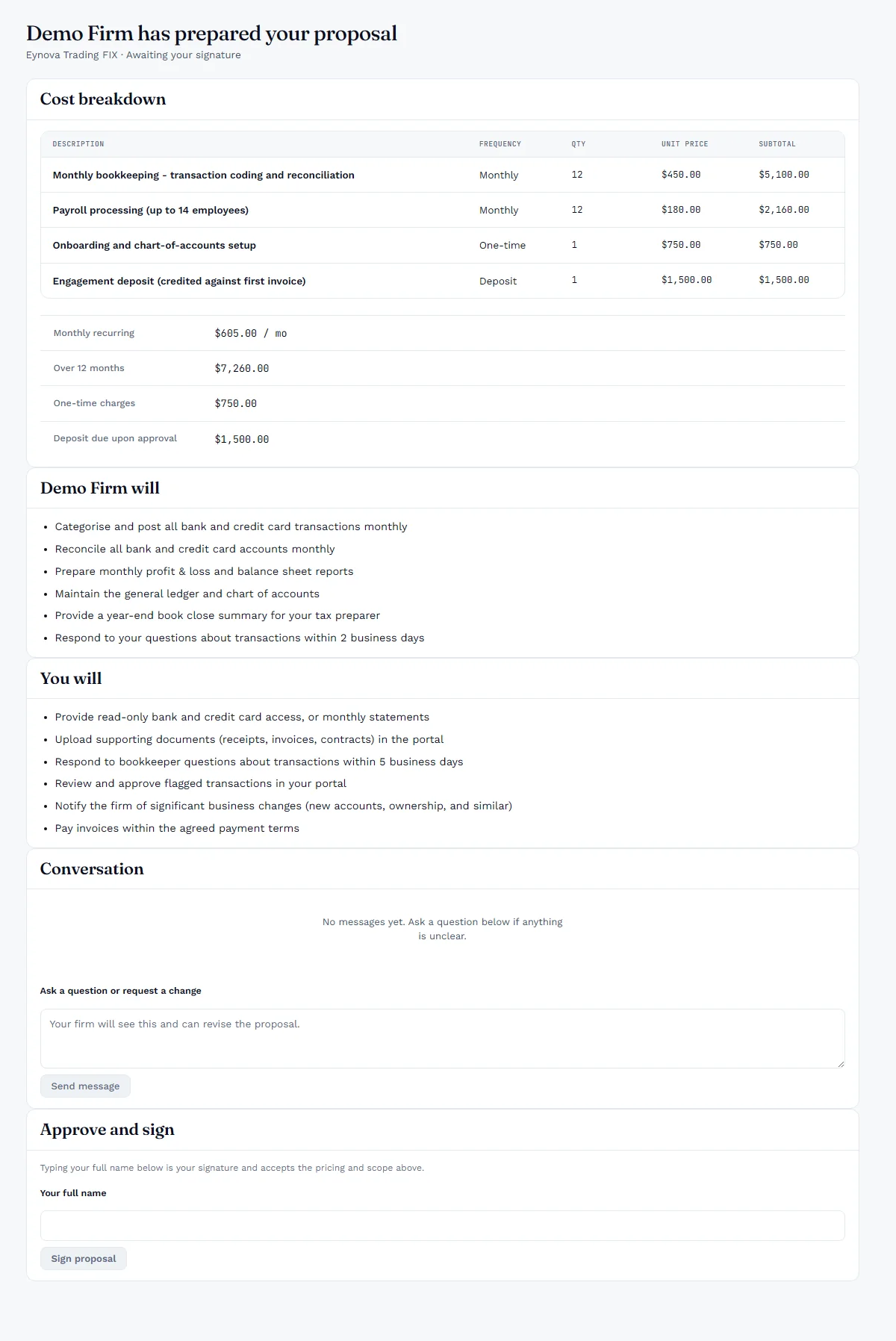
A new client gets one link. They verify their email, fill in the intake form for each business, including every bank account and how its statements will arrive, and submit. Your firm reviews and approves, then prices the engagement in a proposal the client reads, questions and signs in the same place.

  • Intake form per business: entity details, the work needed, accounts and statement delivery
  • Firm-side review: approve with a workflow template, or return it with a note
  • Proposal with line items, scope on both sides, and an optional deposit
  • A conversation thread on the proposal for questions and revisions
  • The client signs by typing their name; the engagement activates off the signed proposal
app.ziepiebooks.ai/my/proposals/…
A proposal in the ZiePieBooks client portal: cost breakdown with monthly, one-time and deposit lines, scope for both sides, a conversation, and sign by name.
Proposal · Client portal
3.2

Bank connections

Client portal · Connect Accounts

The client connects their own banks.

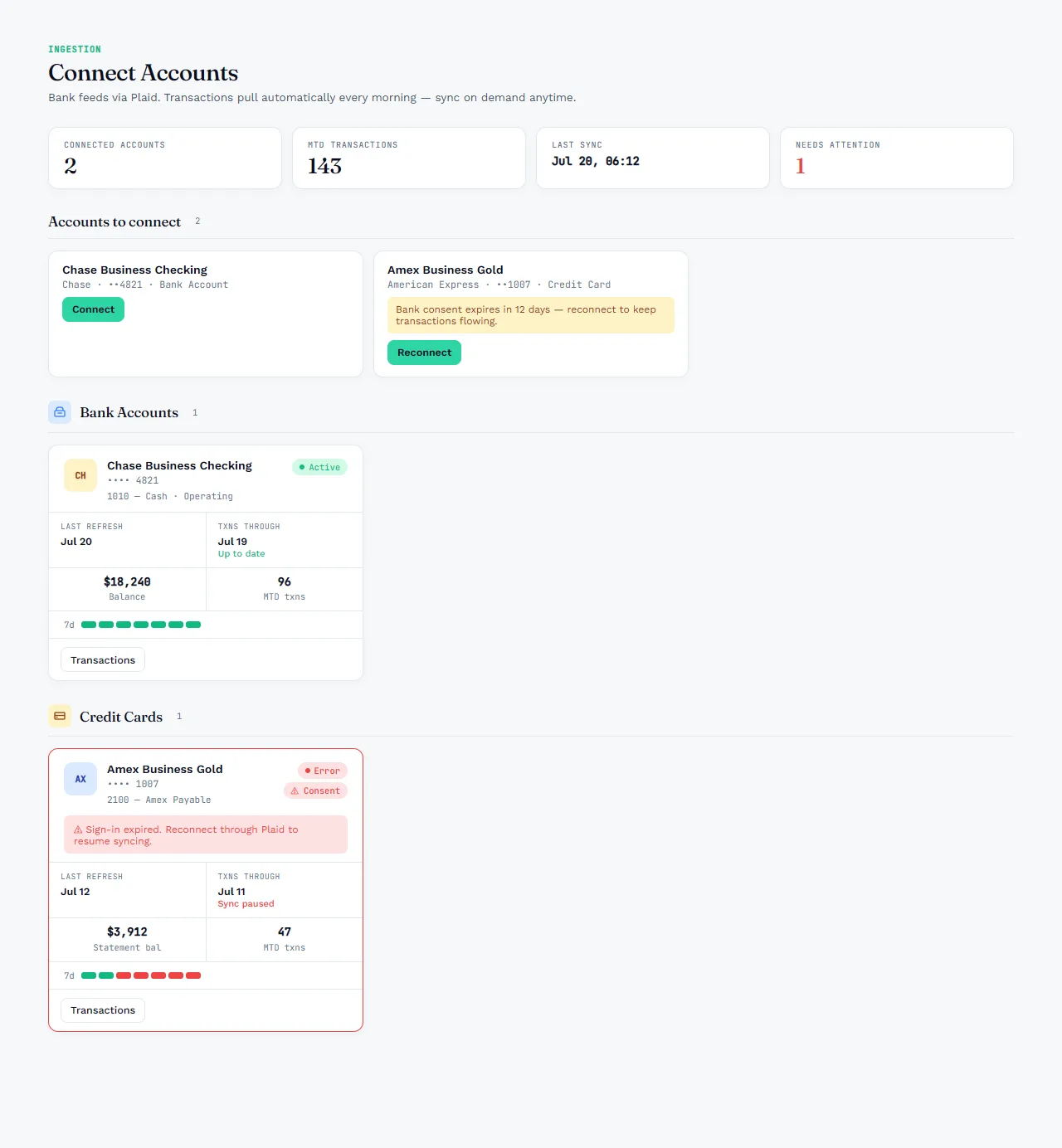
Bank credentials never pass through your firm. The client connects each account through Plaid from their own portal, sees when it last synced and how far it is up to date, and reconnects when the bank's consent runs out. Your bookkeeper sees the same status from the other side.

  • Connect checking, savings and card accounts through Plaid's consent flow
  • Last refresh, transactions through, and the sync log per account
  • Reconnect when a bank's consent expires, before the feed goes quiet
  • Disconnect at any time; the history of every sync stays on record
  • The firm never sees or stores the client's online banking login
app.ziepiebooks.ai/my/businesses/…/connections
Connect Accounts in the ZiePieBooks client portal: accounts to connect, a connected bank account with last refresh and balance, and a card needing reconnection.
Connect accounts · through Plaid
3.3

Documents

Client portal · Documents

Statements uploaded by the client, straight into the pipeline.

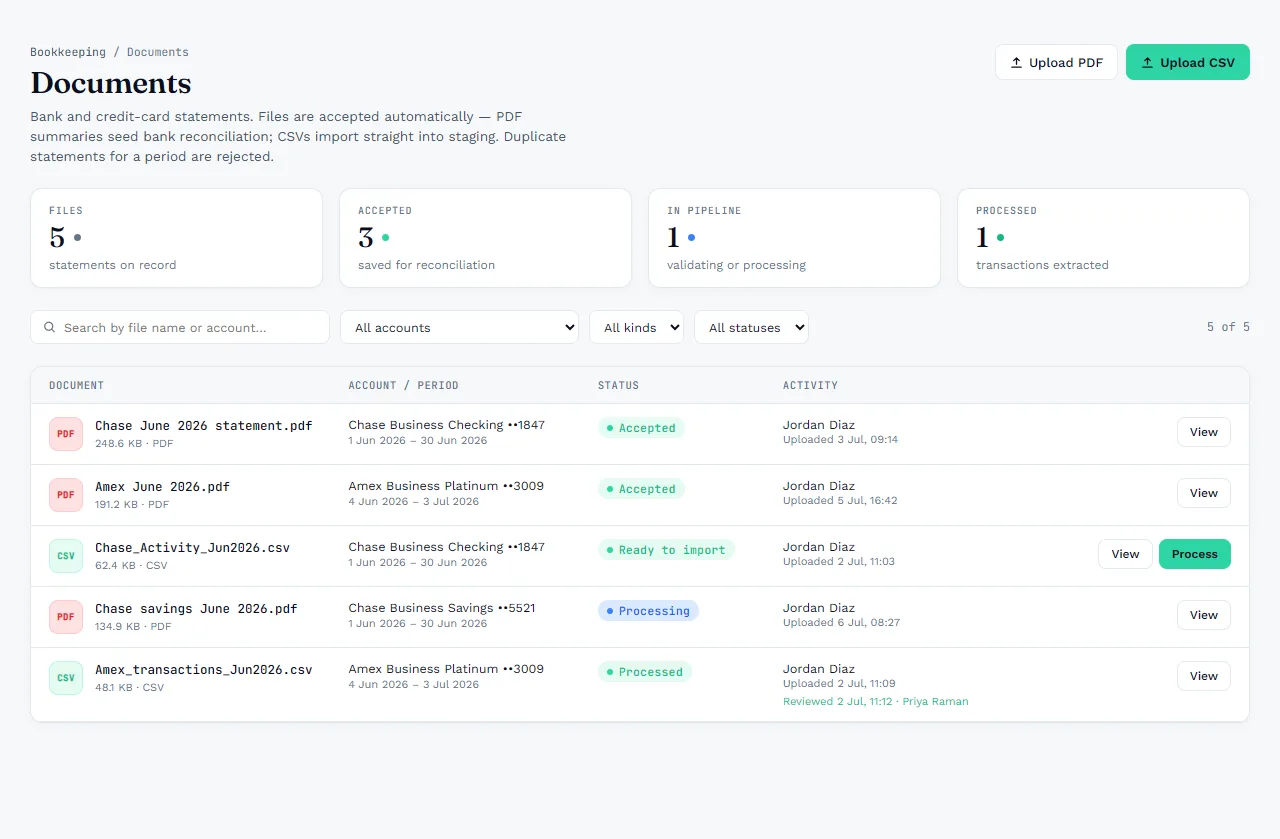
When a feed is not an option, the client uploads the statement. A PDF is kept and read for its balances; a CSV is imported into staging. Each file shows where it is in the pipeline, and a duplicate for a period already covered is refused.

  • Upload PDF or CSV statements against a named account and period
  • Status per file: accepted, ready to import, processing, processed
  • Upload directly from the month's task on the period board
  • Duplicate statements for a covered period are rejected
  • Every upload records who sent it and when, and who reviewed it
app.ziepiebooks.ai/my/businesses/…/documents
Documents in the ZiePieBooks client portal: uploaded PDF and CSV statements with account, period, status and activity.
Documents · Client portal
3.4

Transaction review

Client portal · Transactions

The client answers questions where the transaction is.

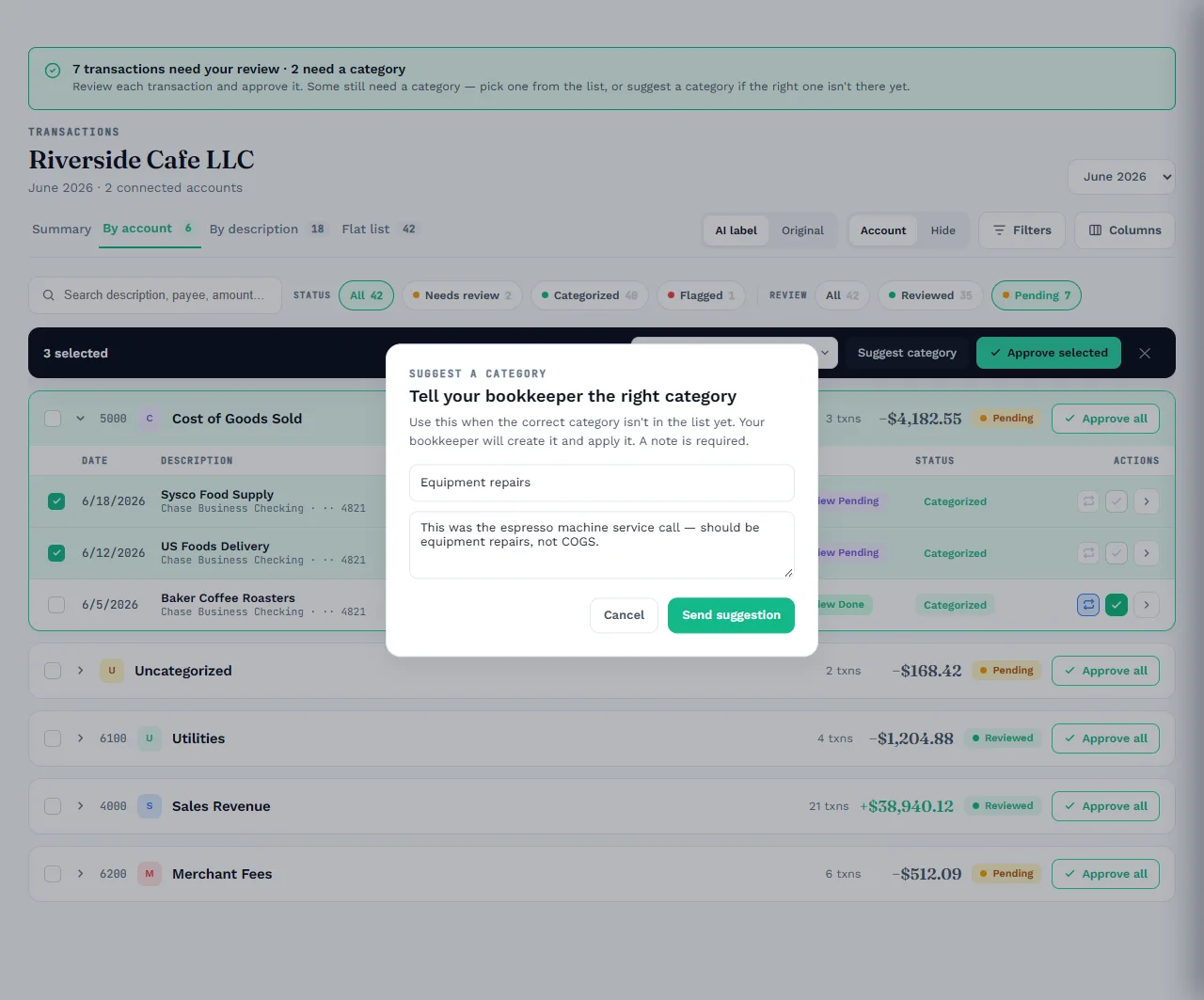
When the bookkeeper releases a month's rows, the client sees them grouped by account with the proposed category on each. They approve what is right, change what is not, and when the right account does not exist yet they suggest one with a note. Their answers return to the firm's queue.

  • Released rows only; nothing the firm has not sent is visible
  • Approve by account or by row, recategorise, or reject with a reason
  • Suggest a category that is missing from the chart, with a note for the bookkeeper
  • Needs-review, flagged and reverted counts on top, so the client knows what is waiting
  • Every answer stamped and returned to the firm's review queue
app.ziepiebooks.ai/my/…/transactions
Transaction review in the ZiePieBooks client portal: rows grouped by account with approve-all, and a dialog to suggest a category with a note.
Transaction review · suggest a category
3.5

Period sign-off

Client portal · Periods

Each month, signed by name.

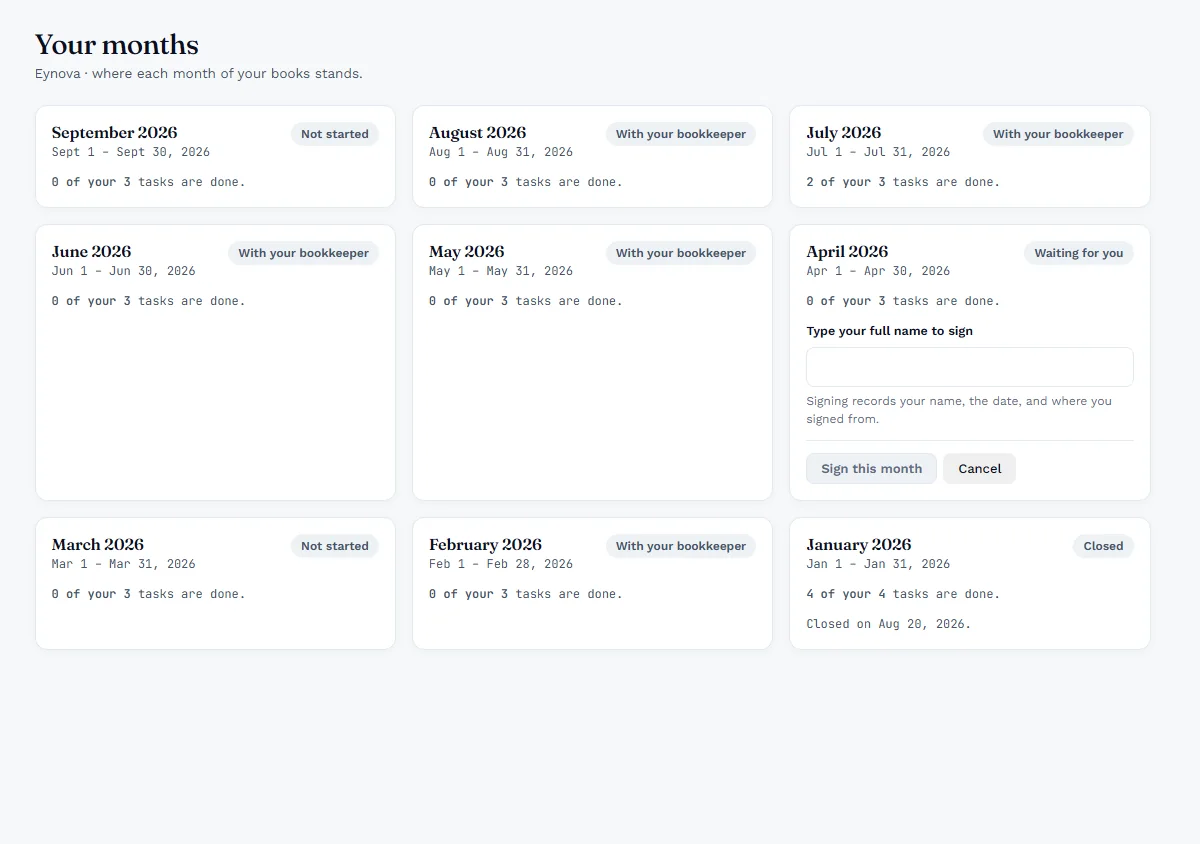
The client's months page shows where every period stands: not started, with the bookkeeper, waiting for them, or closed. When a month is ready they review it and sign by typing their full name, and the signature records the name, the date and where it was signed from. Reports for the business are theirs to read in the same portal.

  • A card per month with its status and the client's own task count
  • Sign-off by typed full name, checked against the client's name on file
  • Journal entries that need the client's approval, in their own queue
  • Reports for the business, readable in the portal
  • Notifications in the portal and by email when something waits on them
app.ziepiebooks.ai/my/businesses/…/periods
Your months in the ZiePieBooks client portal: a card per month with its status, and one waiting for the client to sign by typing their full name.
Your months · signed by name

Try it on your own books

Create your free account in 30 seconds. Enter your email, verify it, and you're in. No credit card.

An unhandled error has occurred. Reload 🗙

Rejoining the server...

Rejoin failed... trying again in seconds.

Failed to rejoin.
Please retry or reload the page.

The session has been paused by the server.

Failed to resume the session.
Please retry or reload the page.